
Browser extension
Highly recommendedYour AI policies, right where your people use AI
The first time someone opens an AI tool you've decided on, the extension shows your decision and what to keep in mind, in your own words. After that, everything is one click away on the toolbar.
The extension installs on a computer, in Chrome or Edge.
The extension installs in Chrome or Edge. Open this page in one of them to add it.
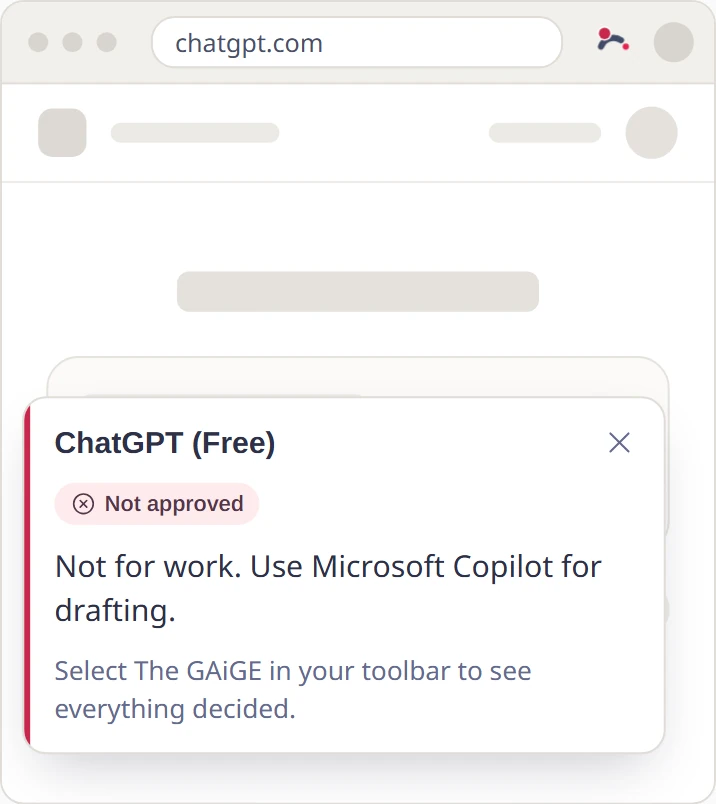
What your people see
It shows one notice for each tool you decide on, never more than one a day, and the rest waits behind the toolbar icon.
-
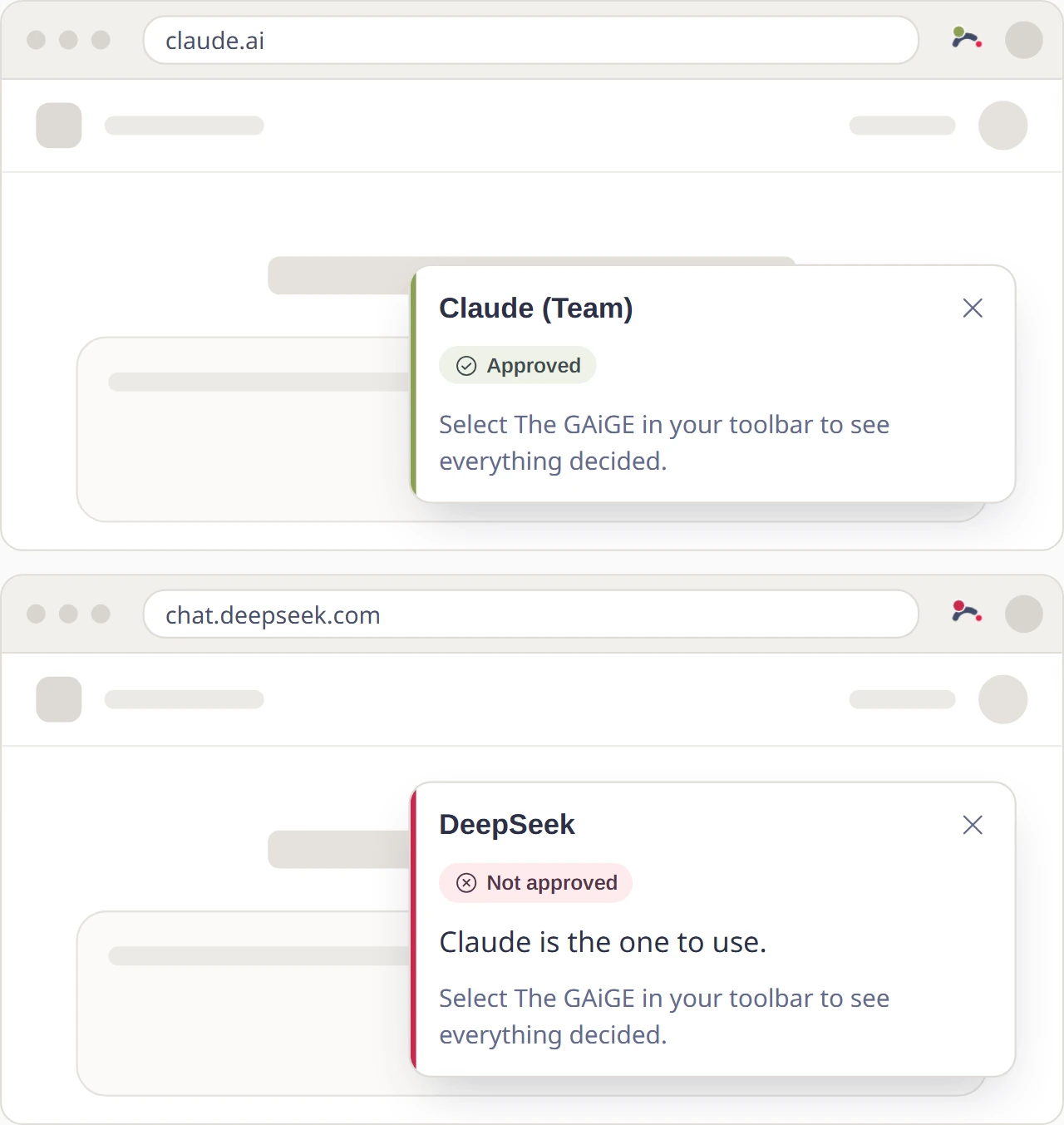
A short notice on the first visit
It shows your decision and any note you've written for staff, then goes by itself after a few seconds. It comes back only if the decision changes.
-
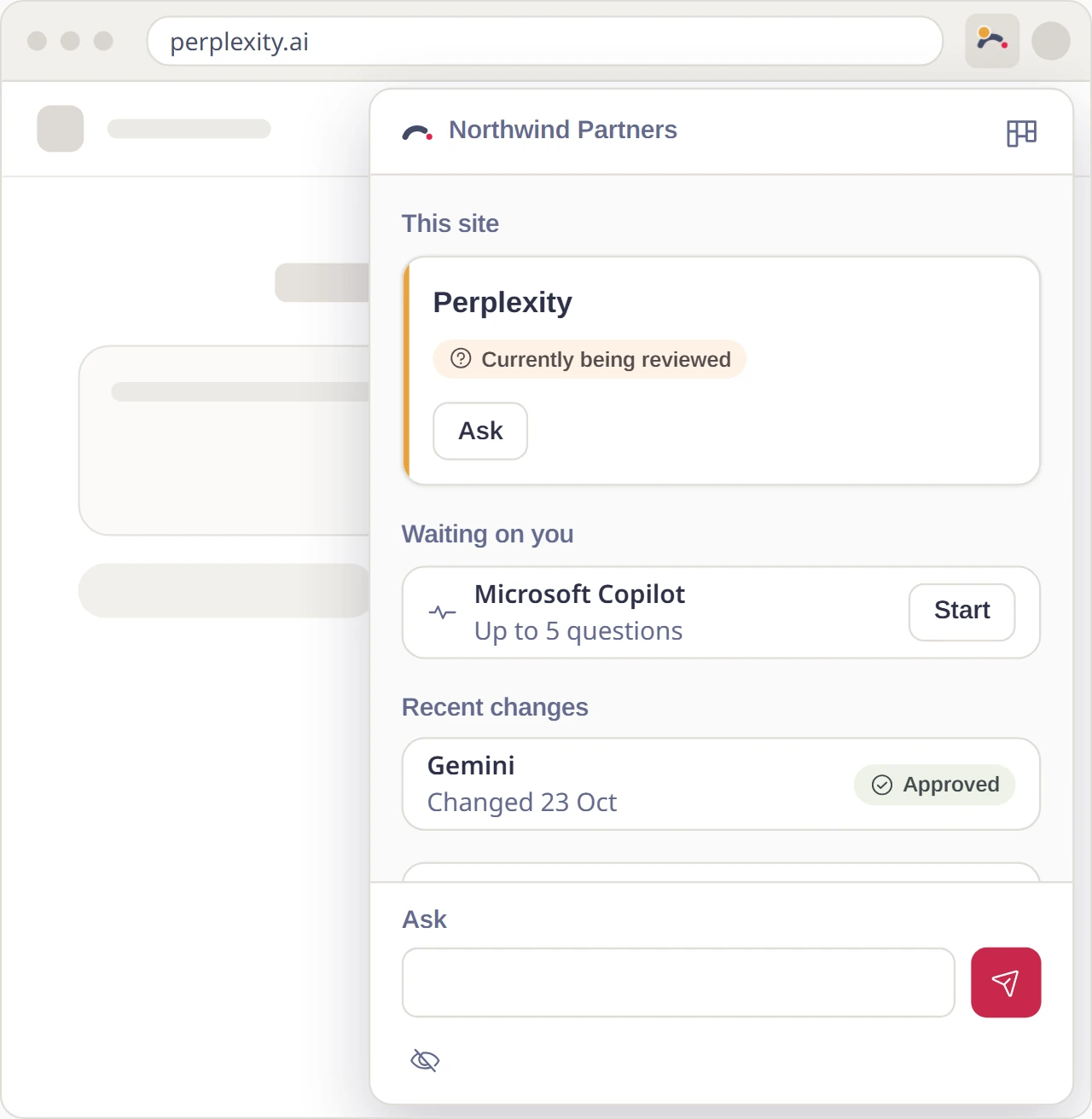
Every decision, behind the toolbar icon
The panel shows the decision for the site they're on, any pulse waiting for them, their requests, and what's changed in the last two weeks. Your full policies are there too.
-
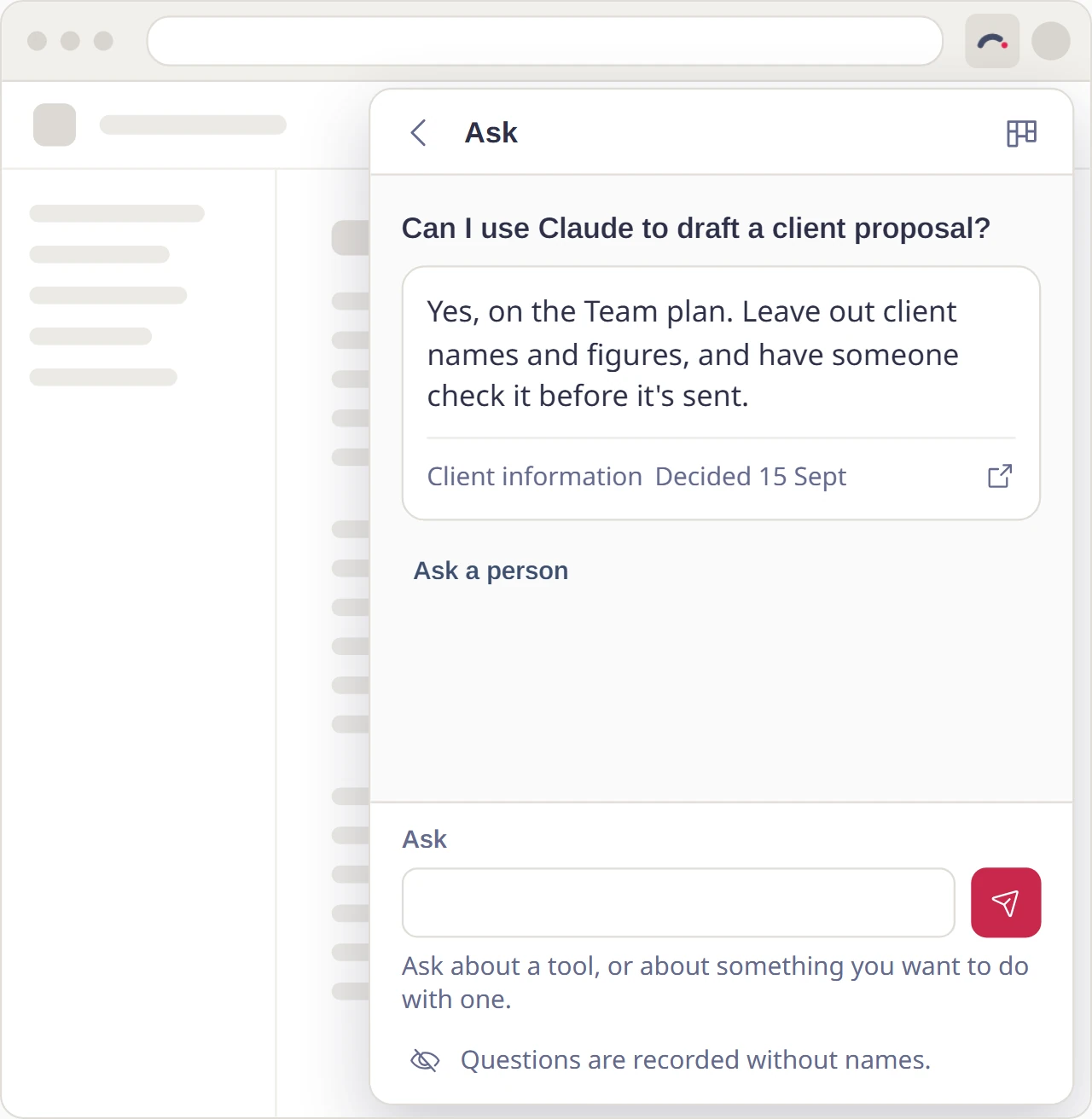
Ask the chatbot
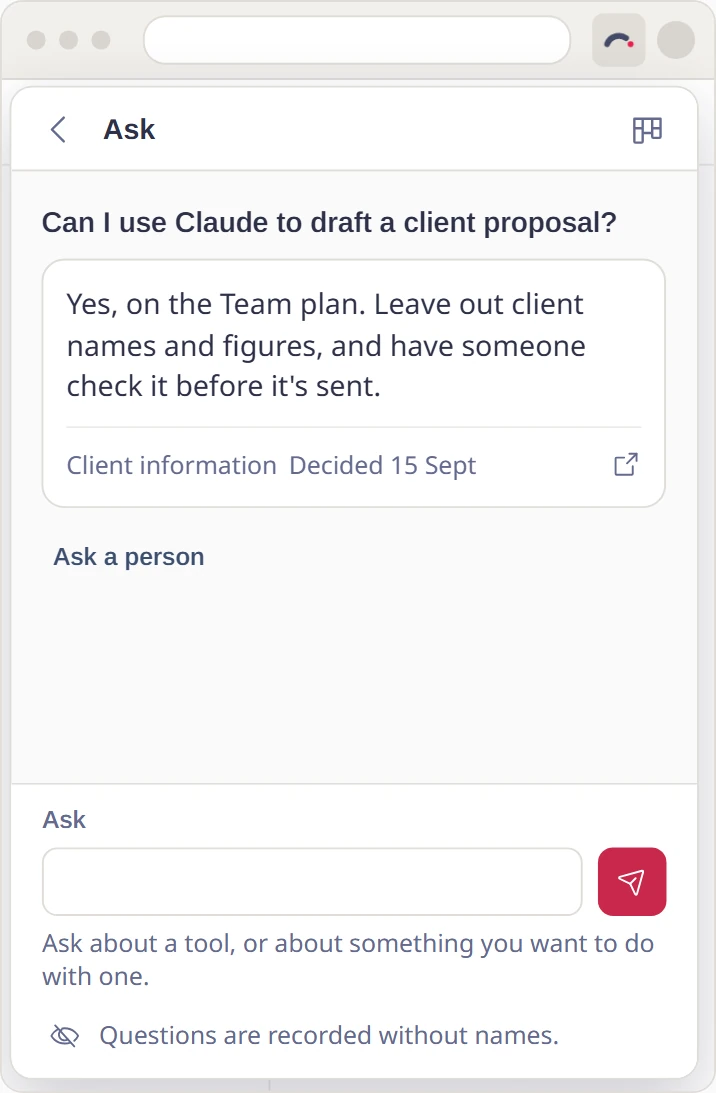
People can ask about a tool or a task in their own words. Answers come from your policies and decisions, and show where they came from. If there's no answer yet, they can ask a person, and the reply appears under Your requests.
-
Pulses and feedback
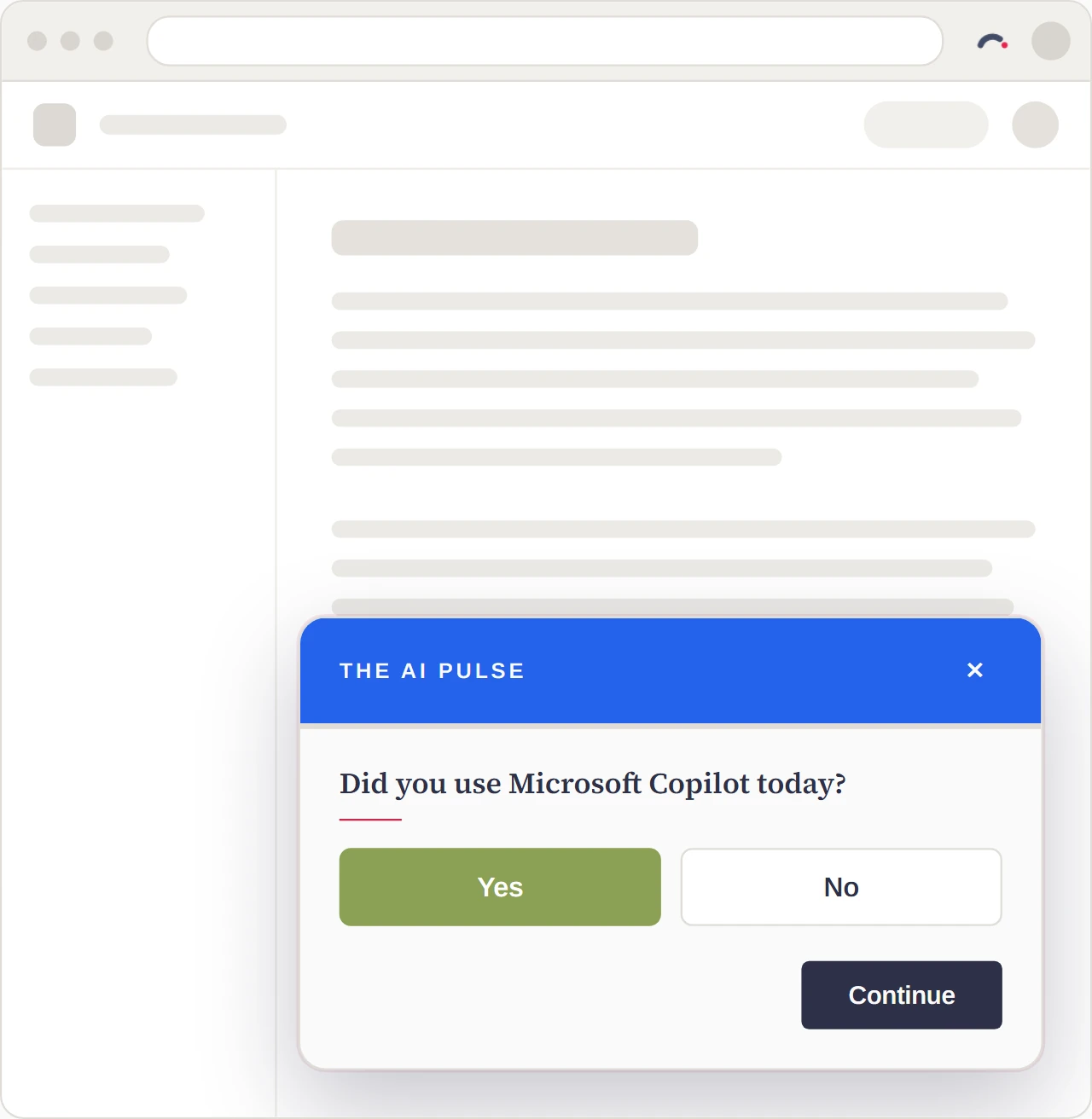
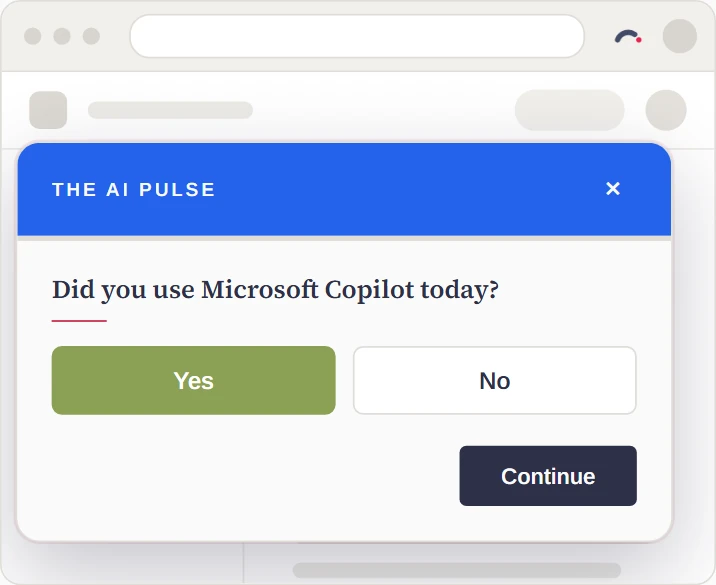
Pulses come on the schedule you set, and most take about 30 seconds. People can snooze any pulse and skip one that repeats, and once you add General Feedback, they can give feedback whenever they have something to say.


What the extension reads, and what it sends
The extension checks each page's address on the person's device; the address never leaves it. It compares the address with your organisation's list of AI tools, which it keeps on the device, and that is how it knows when to show a notice.
It never reads the page, so it doesn't see what people type or what a tool sends back.
What it uses
- Your organisation's AI tools and its decisions, kept on the device
- Their sign-in, so it knows which organisation they're in
- Answers, questions and requests they choose to send
- Whether they have the extension, which their organisation sees once they sign in
- Its version, and whether it's allowed on all sites
- The browser's time zone, when it checks for pulses that are due
What it never collects
- Browsing history, or a record of the sites people visit
- What's on a page, typed into it or sent back
- Passwords or anything else they enter
When someone adds it, their browser says the extension can "Read your browsing history". That's the tabs permission: it lets the extension see the address of each tab they open, so it can compare it with your organisation's list. If someone allows it on all sites, the browser also says it can "Read and change all your data on all websites", which is what lets a notice or a pulse appear on the page.
- Your organisation's records stored in Australia (AWS Sydney)
- Encrypted in transit and at rest
Roll it out to everyone
Installing the browser extension (admin guide)-
Install it for everyone
Push it to every managed browser with Google Workspace, Microsoft Intune or your usual tools. Or, from Governance set-up, email everyone who hasn't added it yet.
-
People sign in and allow it on all sites
Each person signs in once, then selects Allow on all sites in the panel, so notices and pulses can appear on the page. A managed install can't do either for them.
-
See who's set up
Your dashboard shows how many people have it, and the People page shows who, so you know who to follow up with.
Force-install it on managed browsers
Add the extension to your browser policy and it installs on every managed browser, where people can't remove it.
Google Workspace
- Sign in to admin.google.com as a super admin.
- Go to Devices → Chrome → Apps & extensions → Users & browsers.
- Choose an organisational unit, or the top one for everyone.
- Select the yellow + button, then Add from Chrome Web Store.
- Paste the extension ID,
mbhmlmdmgpelgdlpjmcadifeelonkjkb. - Set Installation policy to Force install, then save.
It installs on every managed Chrome browser within 24 hours, usually sooner.
Microsoft Intune
- In the Microsoft Intune admin center, go to Devices → Configuration profiles → Create profile.
- Choose Windows 10 and later, then Templates → Administrative templates.
- For Chrome, open Google → Google Chrome → Extensions, turn on Configure the list of force-installed apps and extensions, and add the Chrome value.
- For Edge, open Microsoft Edge → Extensions, turn on Control which extensions are installed silently, and add the Edge value.
mbhmlmdmgpelgdlpjmcadifeelonkjkb;https://clients2.google.com/service/update2/crxbikmnpacfdlchepmlfocokfdhhkkpide;https://edge.microsoft.com/extensionwebstorebase/v1/crxThe Google Chrome settings appear once Google's Chrome policy templates (ADMX) are added to Intune.
Get Google's Chrome templatesGroup Policy
- Add Google's Chrome policy templates (ADMX) to your domain controller, and Microsoft's Edge templates for Edge.
- Open Group Policy Management Editor and go to Computer Configuration → Policies → Administrative Templates.
- For Chrome, open Google → Google Chrome → Extensions → Configure the list of force-installed apps and extensions, set it to Enabled, select Show and add the Chrome value.
- For Edge, open Microsoft Edge → Extensions → Control which extensions are installed silently, set it to Enabled, select Show and add the Edge value.
mbhmlmdmgpelgdlpjmcadifeelonkjkb;https://clients2.google.com/service/update2/crxbikmnpacfdlchepmlfocokfdhhkkpide;https://edge.microsoft.com/extensionwebstorebase/v1/crxmacOS
Deploy the Chrome file as managed preferences for com.google.Chrome, and the Edge file for com.microsoft.Edge, with Jamf, Kandji, Mosyle or your usual tool.
<?xml version="1.0" encoding="UTF-8"?>
<!DOCTYPE plist PUBLIC "-//Apple//DTD PLIST 1.0//EN" "http://www.apple.com/DTDs/PropertyList-1.0.dtd">
<plist version="1.0">
  <dict>
    <key>ExtensionInstallForcelist</key>
    <array>
      <string>mbhmlmdmgpelgdlpjmcadifeelonkjkb;https://clients2.google.com/service/update2/crx</string>
    </array>
  </dict>
</plist><?xml version="1.0" encoding="UTF-8"?>
<!DOCTYPE plist PUBLIC "-//Apple//DTD PLIST 1.0//EN" "http://www.apple.com/DTDs/PropertyList-1.0.dtd">
<plist version="1.0">
<dict>
<key>ExtensionInstallForcelist</key>
<array>
<string>bikmnpacfdlchepmlfocokfdhhkkpide;https://edge.microsoft.com/extensionwebstorebase/v1/crx</string>
</array>
</dict>
</plist>Can't install extensions? Your policies, pulses, requests and the chatbot are all in the AI Adoption Portal on the web too.
Filtered network? Allow thegaige.com, api.thegaige.com, clerk.thegaige.com and challenges.cloudflare.com, and accounts.google.com if people sign in with Google.
Security review? Talk to us
Questions about the extension
Does it track what people do online?
No. The extension checks each page's address on the person's device; the address never leaves it. It never reads what's on a page.
What happens with a tool you haven't decided on yet?
The panel shows Currently being reviewed, and people can ask about it or ask to use it. Their request comes to you with our recommended answer. Notices appear only for tools you've decided on.
Can people turn the notices off?
Yes. The First-visit notices switch in the panel turns them off. The panel, pulses and the chatbot keep working.
Which browsers does it work in?
Chrome and Microsoft Edge. Other browsers built on Chromium, such as Brave, can add it from the Chrome Web Store. In any browser, people can read the policies, answer pulses and use the chatbot in the AI Adoption Portal.
Is it included in our plan?
Yes. The extension and the chatbot are included on every plan, at no extra cost.
What permissions does it ask for?
When it's added: activeTab, storage, alarms, tabs and scripting, and access to thegaige.com and api.thegaige.com. Access to all sites is optional: each person turns it on in the panel with Allow on all sites, so notices and pulses can appear on the page they're on.
Who sees people's answers?
Each pulse tells people before it starts whether it is anonymous or identifiable. We tell them: "When a pulse is anonymous, your name isn't shown with your answers to anyone, admins included." In a small group, or from something written in a comment, someone may still be able to work out whose answer it is.
Who sees your answersHow do I remove it?
Right-click The GAiGE in your toolbar and choose Remove from Chrome, or Remove from Microsoft Edge. If your organisation installed it for you, it decides whether the extension can be removed.