
Anonymous pulses
When a pulse is anonymous, your name isn't shown with your answers to anyone, admins included.
Each pulse shows whether your answers are anonymous or not.
Each figure from an anonymous pulse needs five answers or more.
For team members
Your organisation uses The GAiGE to agree how AI is used, share its AI policies with you, and hear what's working.
Here's what that means for you.
The extension installs on a computer, in Chrome or Edge.
The extension installs in Chrome or Edge. Open this page in one of them to add it.

Read them in your AI Adoption Portal, download them as a PDF, or open them from the extension. Each new version shows what changed, and Owners and Admins can see who has confirmed reading it.
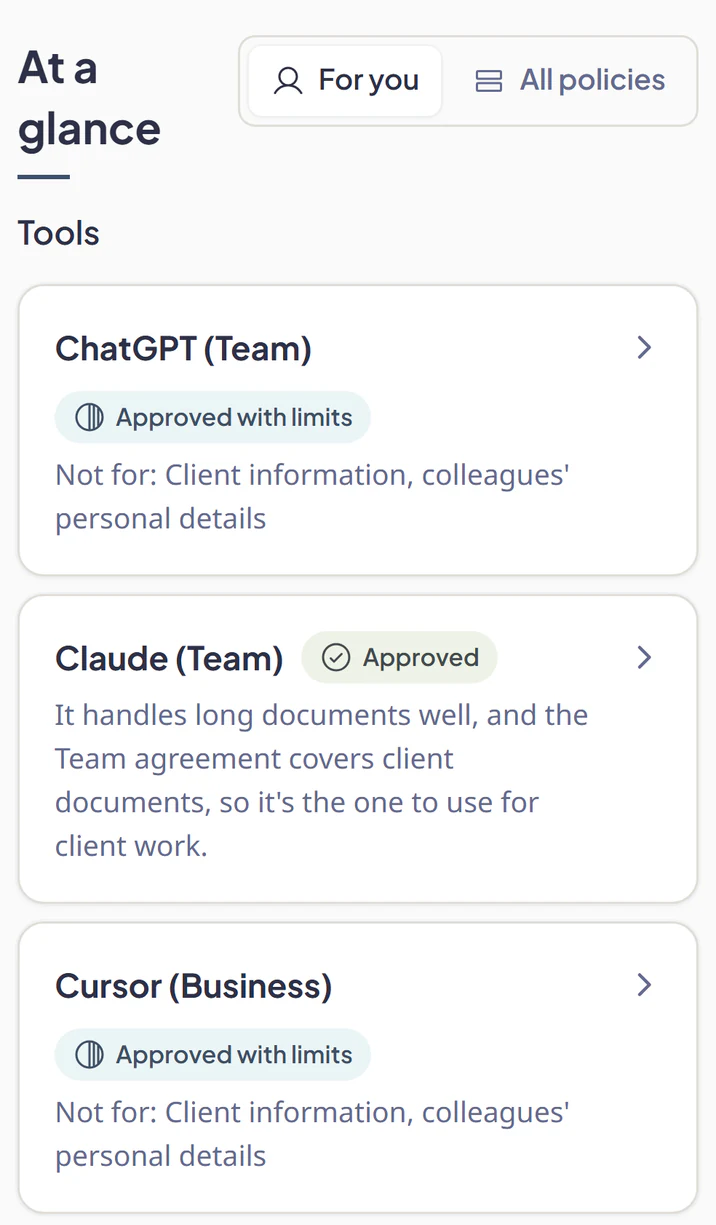
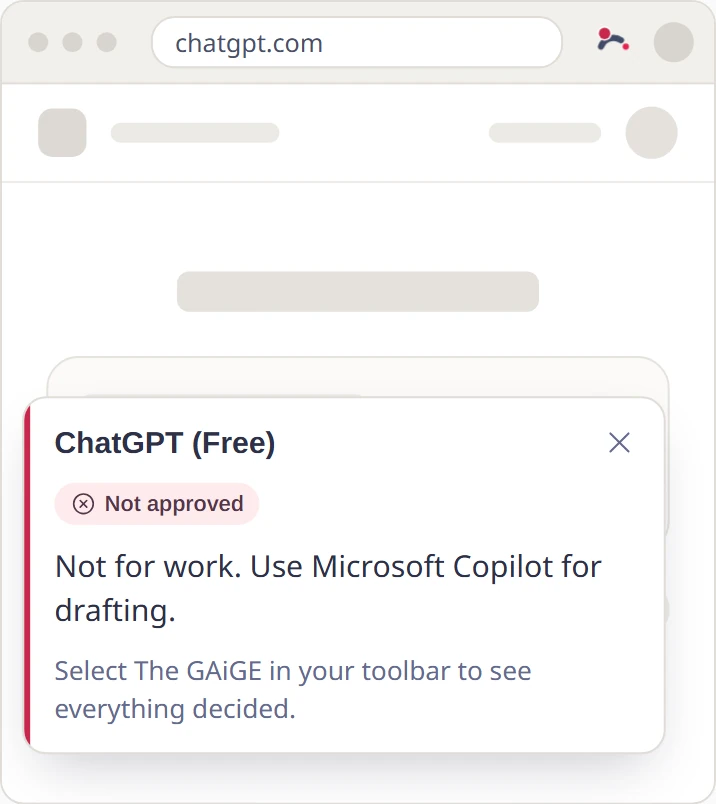
With the browser extension, the first time you open a tool your organisation has decided on, a short notice shows the decision and anything to keep in mind.
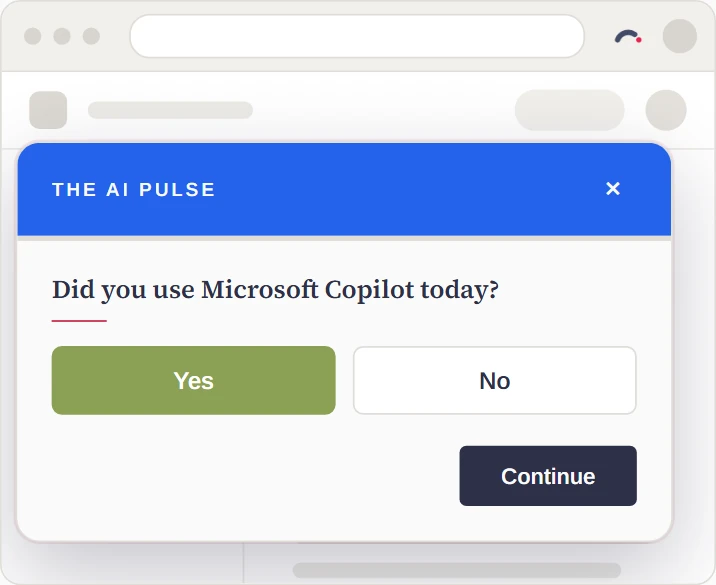
A few quick questions about AI in your work, on a schedule your organisation sets. Most take about 30 seconds.
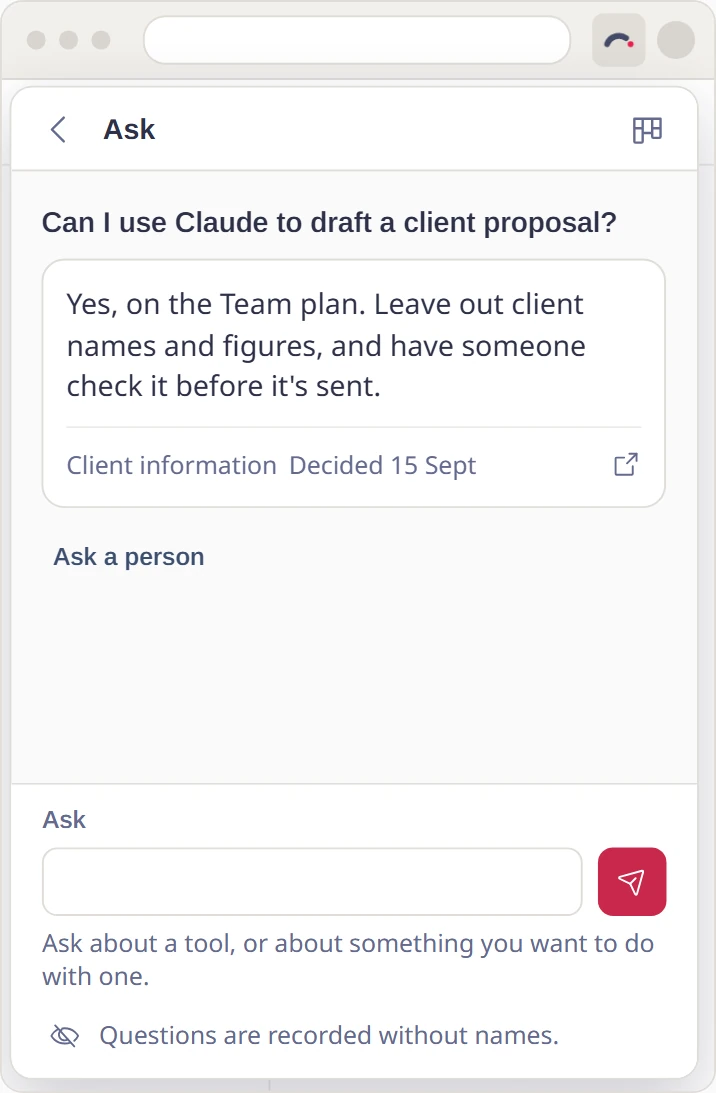
Ask the chatbot what's allowed, ask to use a new tool, report something that went wrong, or share a find that saved you time.
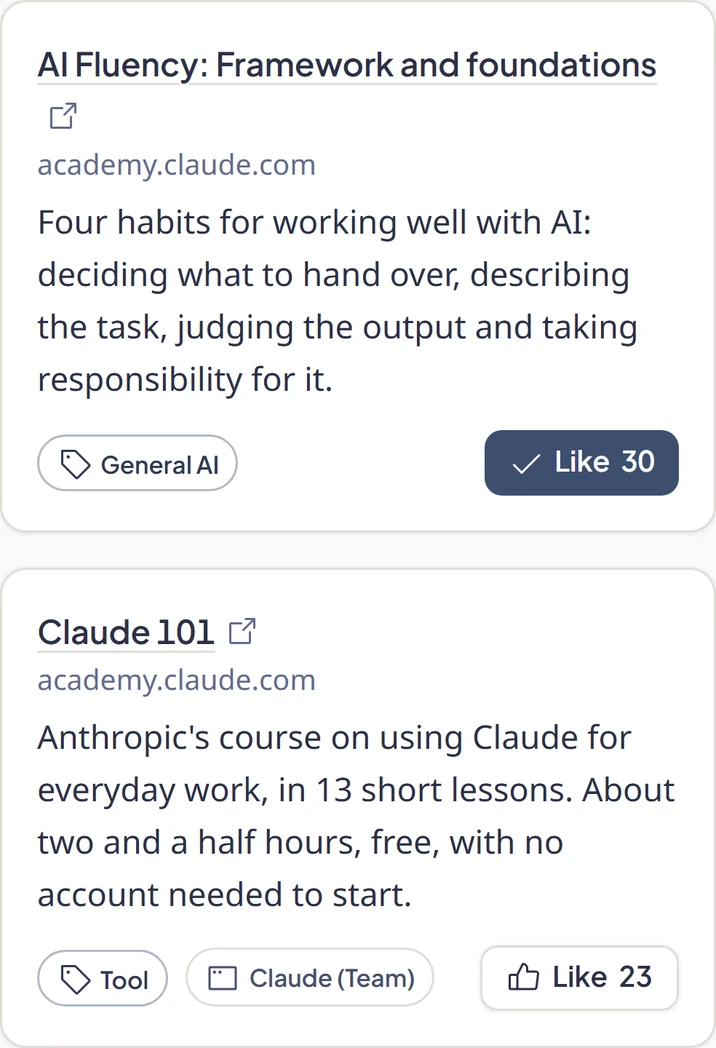
Your AI Learning Centre, in your AI Adoption Portal, has the learning for the tools you can use, free courses on AI in general, and your organisation's own material. Like what helps, so your colleagues can find it too.
The AI State of Play, a one-off survey that most people get first, takes under 10 minutes.
When a pulse is anonymous, your name isn't shown with your answers to anyone, admins included.
Each pulse shows whether your answers are anonymous or not.
Each figure from an anonymous pulse needs five answers or more.
These say so before you start, and show your name with your answers. Your organisation's Owners and Admins can see them, and so can whoever leads your group.
You can close a pulse without answering.
Questions you ask the chatbot are recorded without names.
Whoever answers a request sees your name, so they can get back to you.
The extension checks each page's address on your device; the address never leaves your device. It never reads what's on a page, what you type or your passwords.
When you sign in, your organisation can see that you have The GAiGE.
Pulses come on a schedule your organisation sets, each due at a random time in its working hours.
What data is collected about youYou're the one using these tools, so you know which ones help and which get in the way. Your answers help your organisation decide which tools to keep, how its policies change, and where people need support to learn AI.
For example, if a team says a tool isn't helping with first drafts, your organisation can find out why, arrange help, or try a tool that suits the work better.
That's for your organisation to decide, so here is what it can see. Pulses ask how the tools are working and what support would help. When a pulse is anonymous, your name isn't shown with your answers to anyone, admins included. An identifiable pulse says so before you start and shows your name with your answers, and you can close it and answer nothing.
Your organisation uses The GAiGE to share its AI policies and ask how AI is working for people. With the browser extension, pulses appear on a schedule your organisation sets, and a short notice appears the first time you open an AI tool it has decided on. You can snooze any pulse, and skip one that repeats.
Your organisation decides that. We highly recommend it, because it shows your organisation's decision on an AI tool on that tool's own website. You can also read your policies and answer pulses in your AI Adoption Portal.
The extension installs on a computer, in Chrome or Edge.
The extension installs in Chrome or Edge. Open this page in one of them to add it.
Yes. Select Give feedback in the extension or your AI Adoption Portal, where your organisation offers it.
Ask to use it, in the extension or your AI Adoption Portal. Whoever answers a request sees your name, so they can get back to you.
A one-off survey that asks everyone which AI tools they use, and what for. It takes under 10 minutes. It comes by email, and you can also answer it in the extension or your AI Adoption Portal.
Something else? Ask your admin, or browse the help articles for team members.
The extension installs on a computer, in Chrome or Edge.
The extension installs in Chrome or Edge. Open this page in one of them to add it.
When The GAiGE is added, your browser says it can "Read your browsing history". That's the tabs permission, which lets the extension see the address of each tab you open, so it can compare it with your organisation's list of AI tools.
Select The GAiGE in your browser's toolbar. If it isn't there, open the extensions menu (the puzzle piece) and pin it. Select Sign in. Use your work email to sign in.
The GAiGE needs access to all sites so that pulses and notices can appear on the website you're on. Under Pulses and notices, select Allow on all sites. When your browser asks, choose Allow.
Your browser will say The GAiGE can "Read and change all your data on all websites". That's the browser's wording for access to every website. The GAiGE uses that access only to put a notice or a pulse on the page, and reads nothing there.